
How to Set Up Rec Events
Set up a one-day or multi-day event that is open to the public using our Rec Events feature. Rec Events can be used for events that you are opening to the public including one-day clinics, Parents Night Out, Lock Ins, or other recreational events.
Set Up Your Rec Event
Begin by navigating to Enrollments > Rec Events and clicking on the blue New Event button in the top right corner of the page. Then, fill out the following modal:
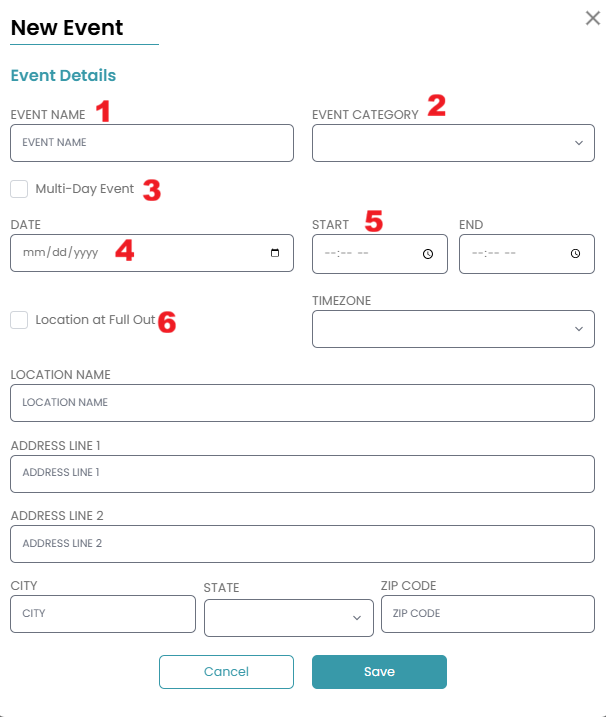
- Event Name: Type in the name of the event in the box provided.
- Event Category: Choose the event category this event falls under from the list provided.
- Add event categories by navigating to Settings > Events.
- Multi-Day Event: Check this box if this event is going to be more than one consecutive day.
- NOTE: Only check this box if your event is running multiple days in a row. If you event runs on multiple, non-consecutive days, we would recommend creating separate events or considering our rec class or camp options.
- Date: Type in the date of the event. If you chose the multi-day event option, you will have the ability to type in both the start and end date.
- Time: Input the start and end time of your event. You can also choose the time zone if you are traveling somewhere that is outside of your normal time zone.
- Location: Check the box next to "Location at (gym name)" if the event is at your gym, or type in the address if it is an off-site event.
Understanding Your Rec Event Tabs
Once you've created your rec event, you can navigate to the following tabs to finish configuring your settings:
- Event Details-This tab allows you to change any settings you previously set when creating the event. You can also add flyers, copy the event, or delete the event from this page.
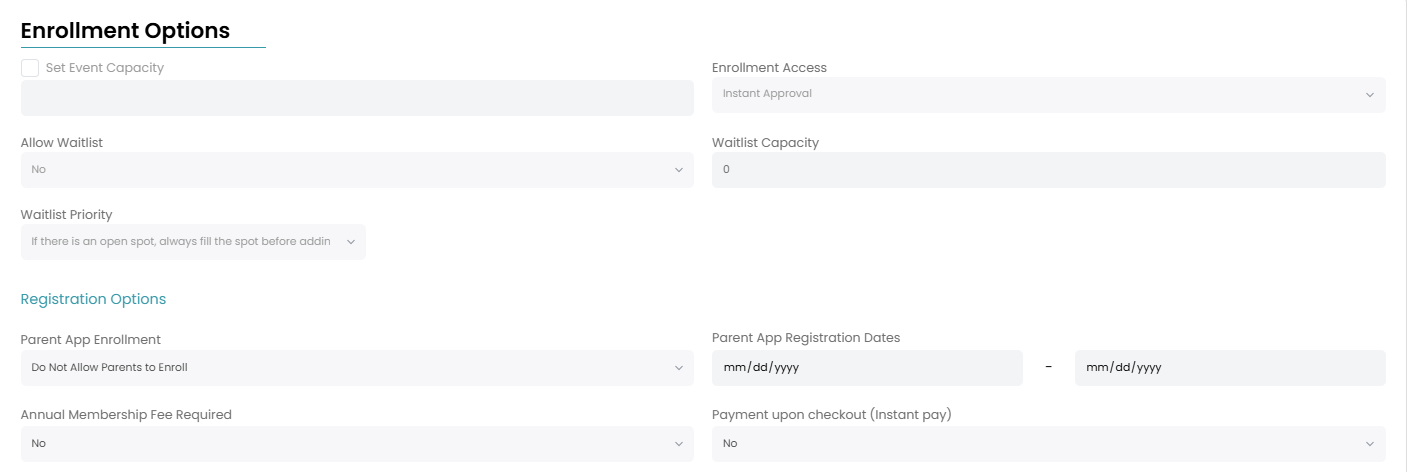
- Enrollment Requirements- On this tab, you can set the capacity, determine if you want a waitlist, allow parents to enroll on the app, set registration dates, determine if you want those who enroll in this event to pay your annual membership fee, and turn on instant pay which would require payment upon enrollment if you allow parents to enroll from the app.
-
- Schedule- Set up the schedule for the event in this tab and decide if you want it to be visible to parents.
- Roster- Add staff assignments and athletes to the roster from this tab. You can also take attendance from this tab.
- Add Ons- Add event add ons such as t-shirts or lunch.
- Fees-Set up the tuition for this event and any additional fees associated with enrollment.
- Skill Tracking-Set up skill tracking for this event. This feature is useful for clinics or private lessons.
- Email-Send informational emails to anyone enrolled in this event directly from the emails tab. You can also keep track of previously sent emails from this tab.
Interested in setting up an event for your teams only? Check out this support document.