
Change Time For A Single Day Of Class
If you need to change the time for just one day of a class, you can do so directly from the Class Attendance page. This is helpful for days you need to extend class or when you need to change from a night to a day time class.
NOTE: This feature only allows admins to change the time of class and NOT the day of a single class period.
Follow the steps below to change the time for a single day of class.
Steps to Change Time For One Class Day
-
Open the Class Attendance Page
Navigate to the class you’d like to change the time for and view its attendance for the specific date.
-
Select “View/Edit Class”
Under the date of the class, click Edit Day.
-
Choose “Change Class Time”
From the options provided, select Change Class Time.
-
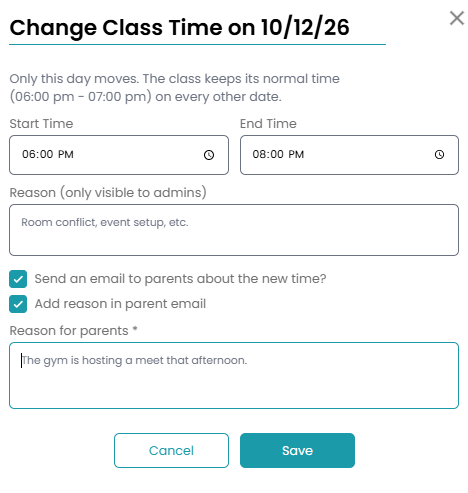
Change Class Time
Update the start and end time for this day of class.
-
Add a Reason (Optional)
In the pop-up window, you can enter a note that is visible to admins only. This is useful for internal communication or explaining why the class time was changed.
-
Send an Email to Parents (Optional)
You’ll also have the option to notify families by email when the class time is changed. This email can be edited in Settings > Communication > Enrollments > Class Time Changed
-
Add reason in parent email (Optional)
If you choose to send an email to parents, you can also include a reason in the email that is separate from the reason for admins. This reason will be included directly in the copy of the email.
If you need to reinstate the time of class you can undo the time change. Select the Edit Day > Edit Class Time and select Reset Time in the pop-up modal. If you need to cancel a day of class, view this document for more information.