
Party Manager-Adding Time Slots
You must have your Party Manager settings configured prior to adding time slots.
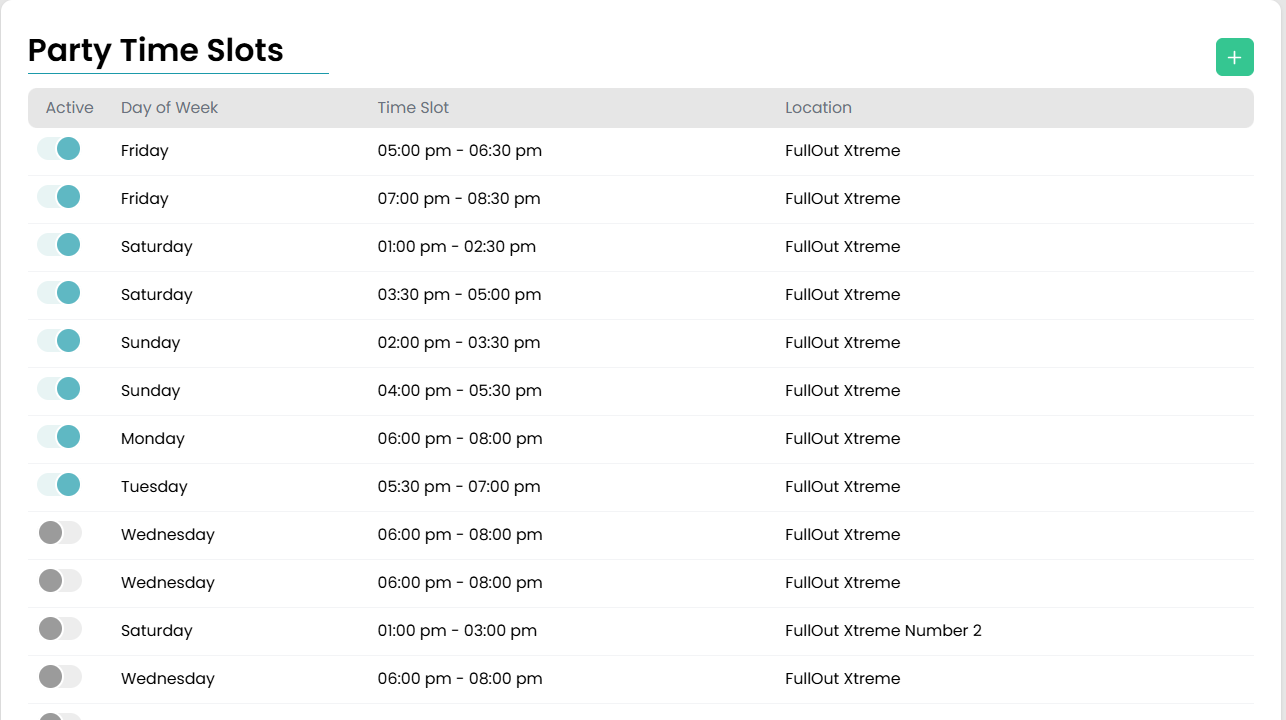
Add time slots for your parties by navigating to Settings > Party Manager > Time Slots. Once there, you will click the green plus button in the top right corner to add your time slots for your parties. You will be able to add on day and time slot at a time. Once a time slot is added, you mark it active and unactive using the toggle button on the far left of the table.
Marking a Time Slot Unavailable
These time slots will populate for the entire year every year you are on the Full Out platform. If you want to make a time slot unavailable for a specific day due to your gym being closed, you have two options:
- Create a Blackout Date
- Cancel the time slot by going to Enrollments > Party Manager and clicking on the time slot you want to cancel. Once you click the time slot, change the dropdown to say "Unavailable" instead of "Open Time Slot".