
Trial Policies
Trials are a feature of recreational classes that allow an athlete the ability to 'test out' a class prior to enrollment. Trials are defined per rec class, so each class can have different settings.
This feature is shown on the One Time Enrollments (OTE) tab of the rec class. Trials are not enabled as a default when a rec class is created. The admin has the ability to enable trials for a class tied to a specific trial policy, which defines the options for this feature.
Class Trials
Trials are defined by the trial policy that is selected for the class. Select the One Time Enrollments tab on the side nav of a recreational class to access the page. The status of the Trials are shown with the associated policy it is attached to. See sample image below.
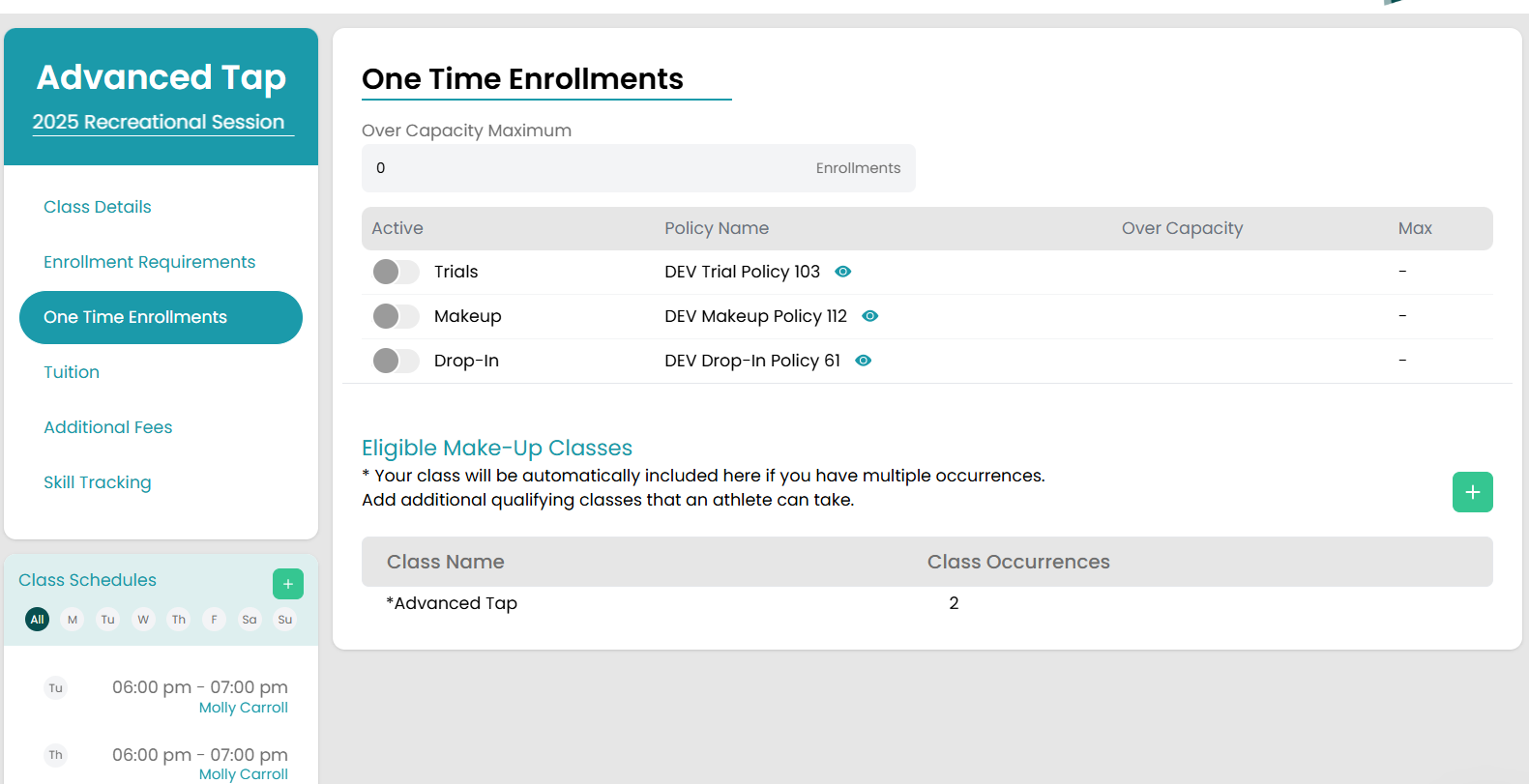
To enable the Trials, select the pencil icon on bottom of page to enter edit mode and select the button beside Trials to activate, then select Save. Trials will be Active for this class and follow the rules set up in the referenced policy.
To get a quick look at the policy that is being applied, select the eye icon beside the policy name and a read only modal will show the contents of the policy. Each policy name is also a link to the Settings page where the policies can be created or modified.
Trial Policy
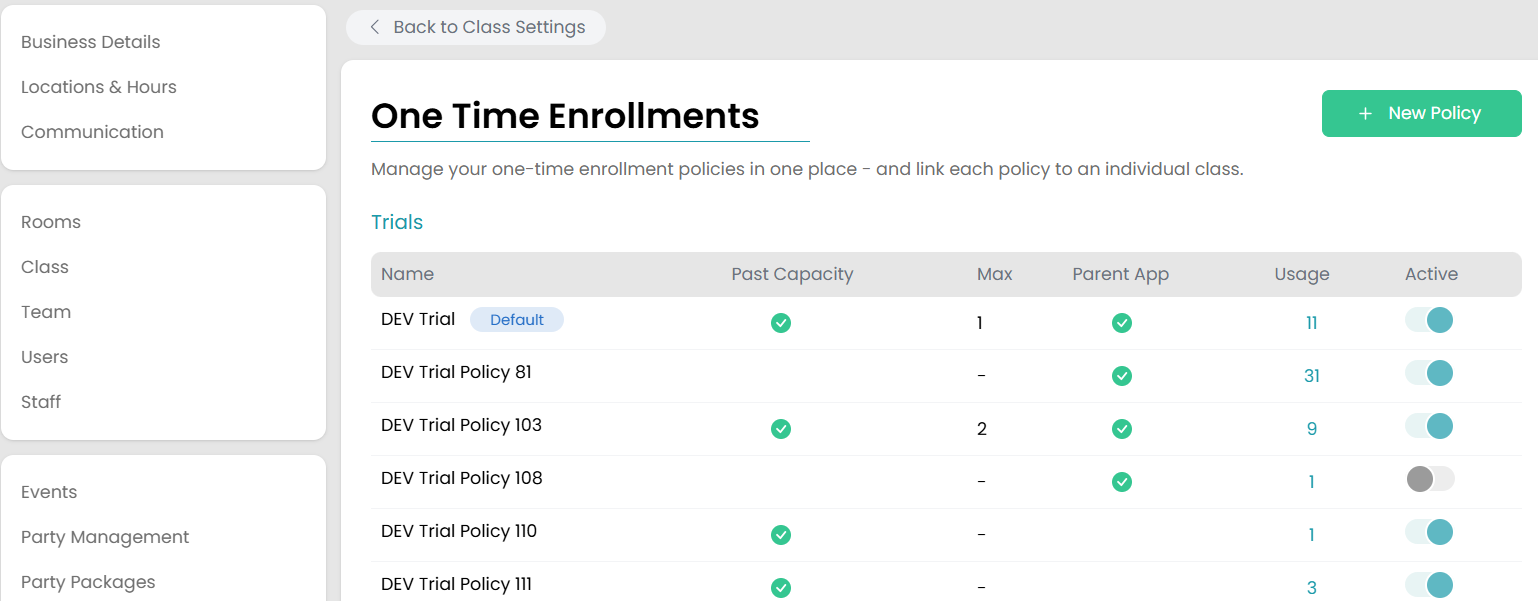
To define a new or modify an existing trial policy, on Admin, go to Settings>Sessions>One Time Enrollments where all policies are shown. The list of policies gives some of the critical information defining the policy. As shown on this image, there is one policy required to be a Default policy. This policy will be applied when a new class is created.
Trial Policy Configurations
The trial policy configuration modal pops up when the trial policy is selected, where all options for trials will be defined. The table below lists each option with a description.
| Policy Configurations | Options | Description |
|---|---|---|
| Name | Required policy name | The name of this policy |
| Active | Yes/No | This option allows this policy to be available for selection to a class; if this is set to No, this policy will not show up on the drop down for Policy when editing the class One Time Enrollments page. |
| Set as default policy for all rec classes | Checkbox | Only one policy can be the default policy applied when creating new classes, and that policy must be Active. This checkbox will apply the default to this policy if selected. |
| Always enable trials for new classes | Checkbox | If this policy is set as the default policy, the option to enable trials for new classes that are created is given. By default, trials will not be enabled on new classes unless this checkbox is selected. |
| Trial Cost | Dollar amount | If a trial has a fee, define it here. Upon enrollment into a trial, an invoice line item will be created for the athlete with this cost. |
| Billing Category | Dropdown of active billing categories | Required, select the billing category to apply to Trials when invoiced. This is required even if the Trial Cost is zero. |
| Reserve enrollment spot? |
Yes No |
Typically a trial is scheduled to see if they want to enroll in the class. Admin can reserve the athlete a spot on the roster if this selection is Yes. |
| Days reserved after trial | Number of Days | If Reserve enrollment spot is set to Yes, define how long this spot will stay reserved on the roster. This allows the athlete so many days to decide if they will enroll based on their trial. |
| If schedule is full, allow trial? |
Yes No |
Admin can allow trials in a class that is at capacity based on this selection. However, if Reserve enrollment spot is set to Yes, this setting cannot be selected because a spot cannot be reserved if the schedule is full. This can only be selected if the spots are not being reserved for trials. |
| Set max per class per day |
Checkbox Number |
Admin can define a limit for the number of trials allowed in a class per day. If this is not selected, any number of trials can be scheduled up to the capacity limits enforcements. |
| Set how many trials allowed per athlete |
Checkbox Number |
Admin can limit the number of trials an athlete can take in a class. For instance, if there are 3 occurrences of a class, but this number is set to 2 and the athlete wants a trial in each occurrence, they will not be able to enroll after 2 trials are scheduled/ attended. |
| Allow enrollment on parent app? |
Yes No |
Admin will define whether the parent app can directly enroll into trials for a class. |
| Do they require approval? |
Yes No |
If Allow enrollment on parent app is set to Yes, admin will define whether the trial enrollments from parent app require approval. If they do require approval, the trial will go to a Pending status and admin will have a task to approve or decline the request. |
| Minimum days required before booking | Number of days | If Allow enrollment on parent app is set to Yes, admin can define the minimum days before the class date that a parent can request enrollment. For instance, if this is set to 5 days, parent app will only have option to enroll in trial that is at least 5 days out. |
| How far can parents book in advance? | Number of days | If Allow enrollment on parent app is set to Yes, admin can define how far out a trial can be scheduled on parent app. For instance, if this is set to 45 days, parent app will only have option to enroll in trial that is within 45 days. |
| Can parents exceed capacity? |
Yes No |
When "If schedule is full, allow trial?" is set to Yes, this setting will define if the Parent App can exceed the capacity of the class, or if that action will only be limited to Admin. |
| Payment Upon Checkout (Instant Pay) |
Yes No |
Selecting Yes will require parents to pay immediately upon checkout for the trial. |
NOTE: That max number of trials per day will be limited based on the "Over Capacity Maximum" that is set on the class One Time Enrollments page (see article One Time Enrollments).
After all selections are made to set up a trial policy, select Save button at bottom of modal.
Check out our article on Booking Trials next!