Booking A Trial
Trials can be booked either by admin in the admin dashboard or by parents in the Parent App. Below are the instructions for booking a trial using both methods.
For more information setting up your trial policy and enabling it for classes, visit this support article.
Book a Trial in Admin Dashboard
Parent App
When a trial policy on a rec class allows trial sign-up on Parent App, the trials will be available during enrollment process. Here are the steps for enrolling in a trial from the Parent App:
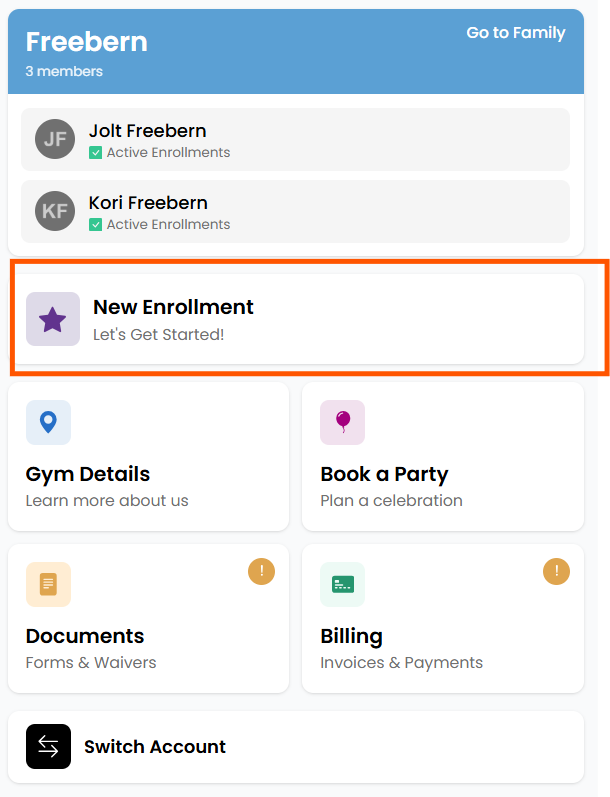
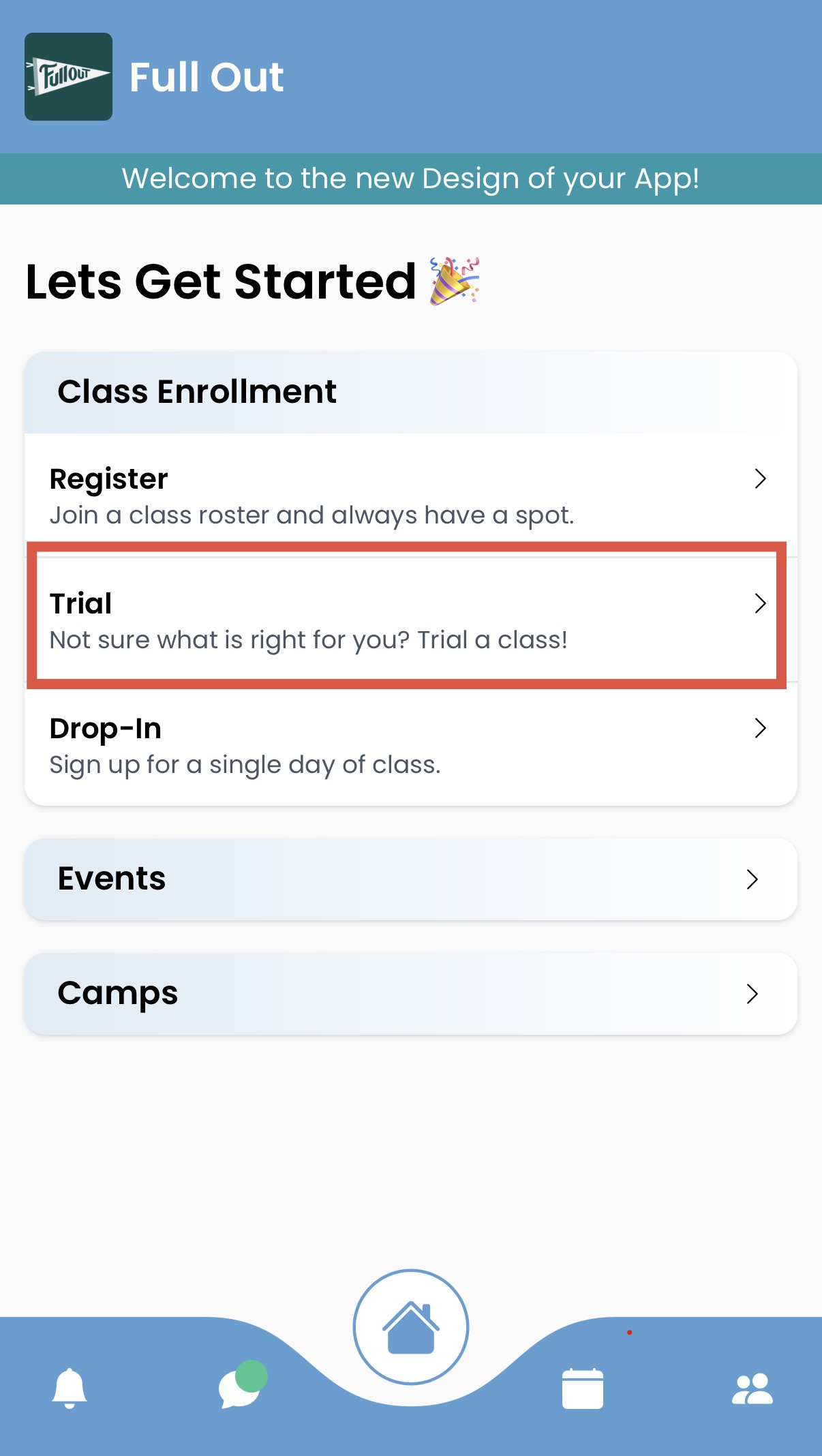
- From parent app home page, select New Enrollment and the option for Trial will be available under Class Registration.
-
- Select the Trial option, then athlete(s) to enroll
-
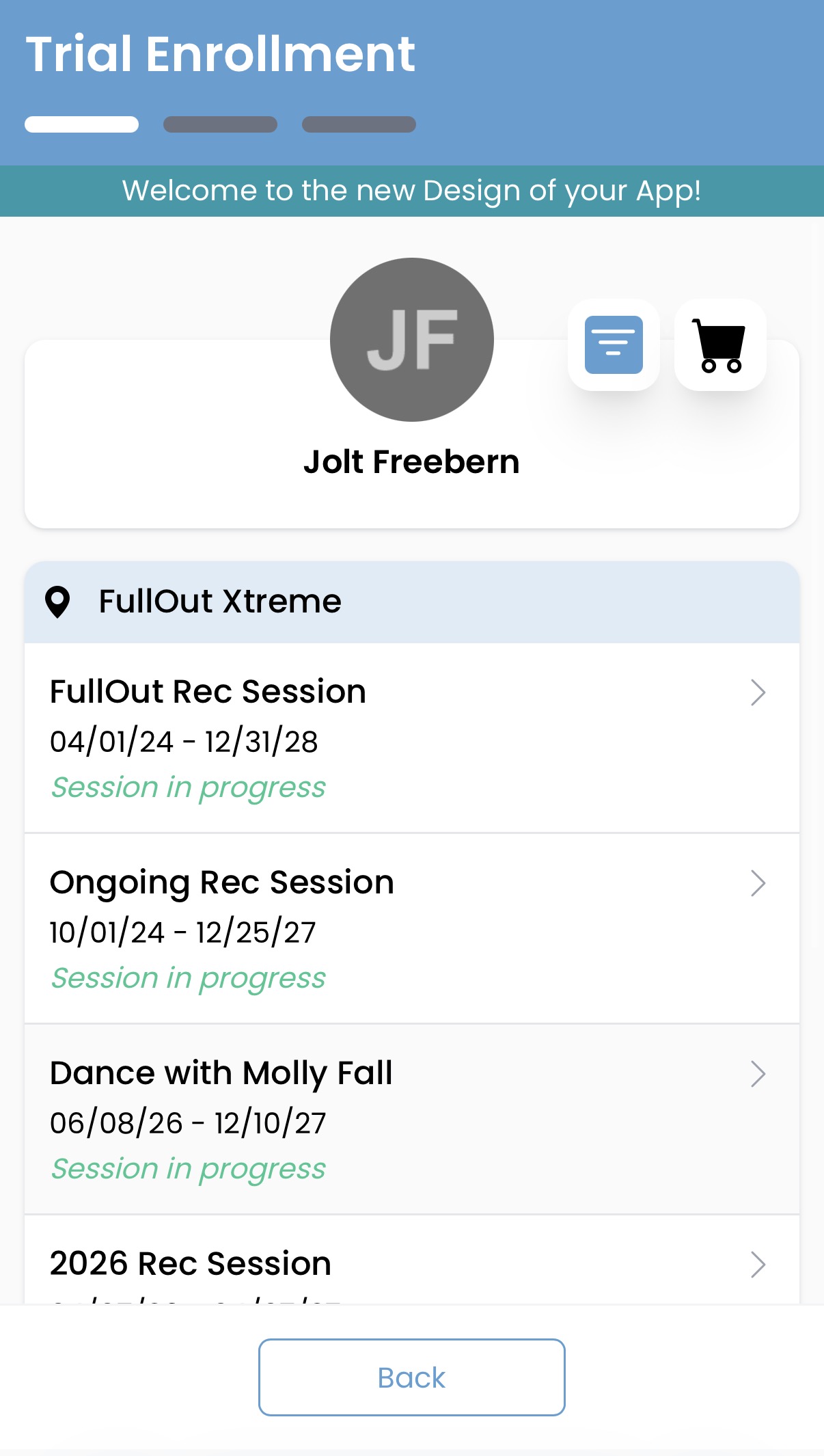
- A list of Recreational Sessions will be shown to choose from.
-
- Once a session is opened, select a class.
-
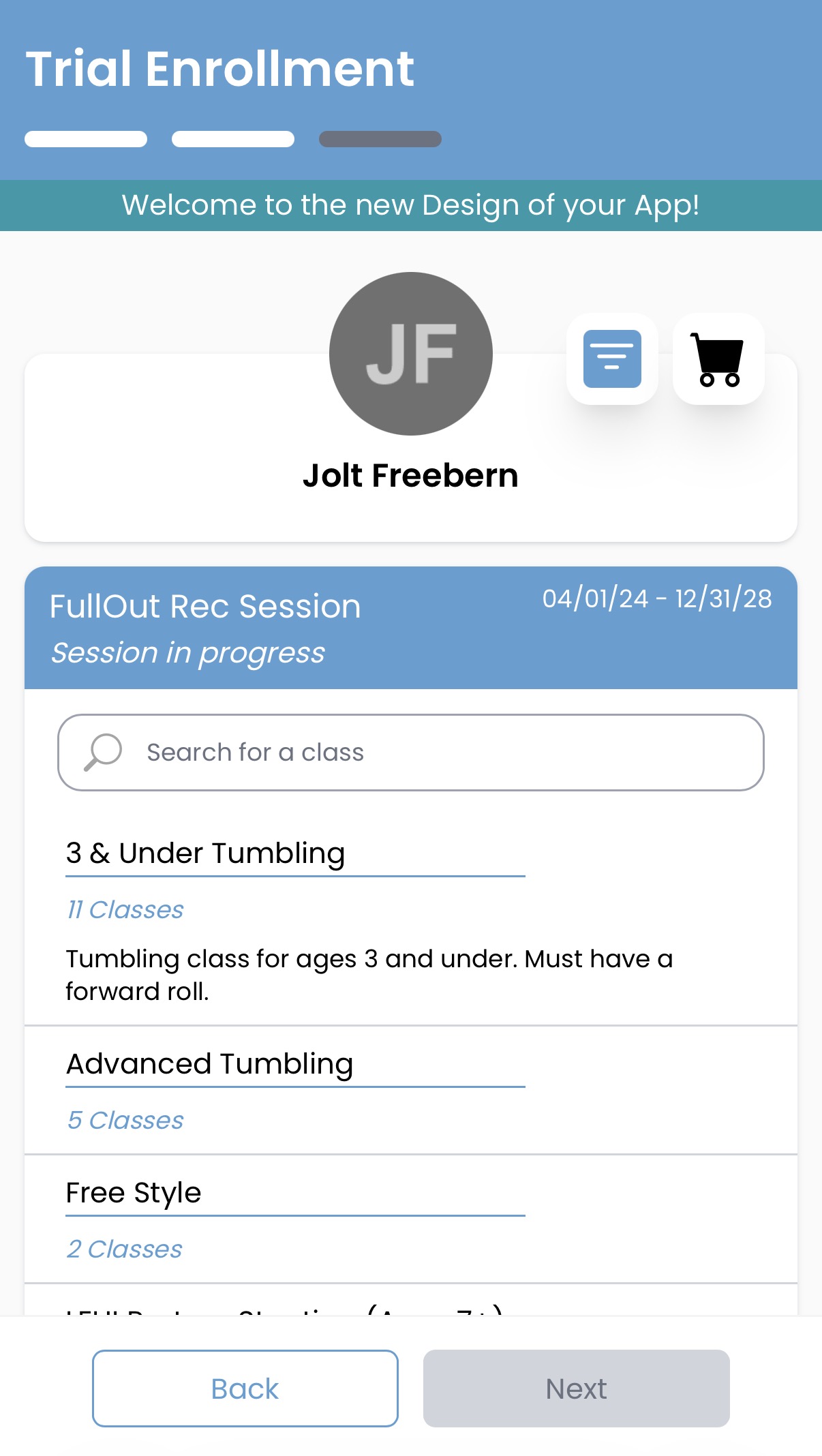
Note that the approval setting is based on the trial policy for the class, not the class enrollment setting. If age/gender requirements are not met, this trial will go to Pending status for admin to approve, even if it is set to approval not required.
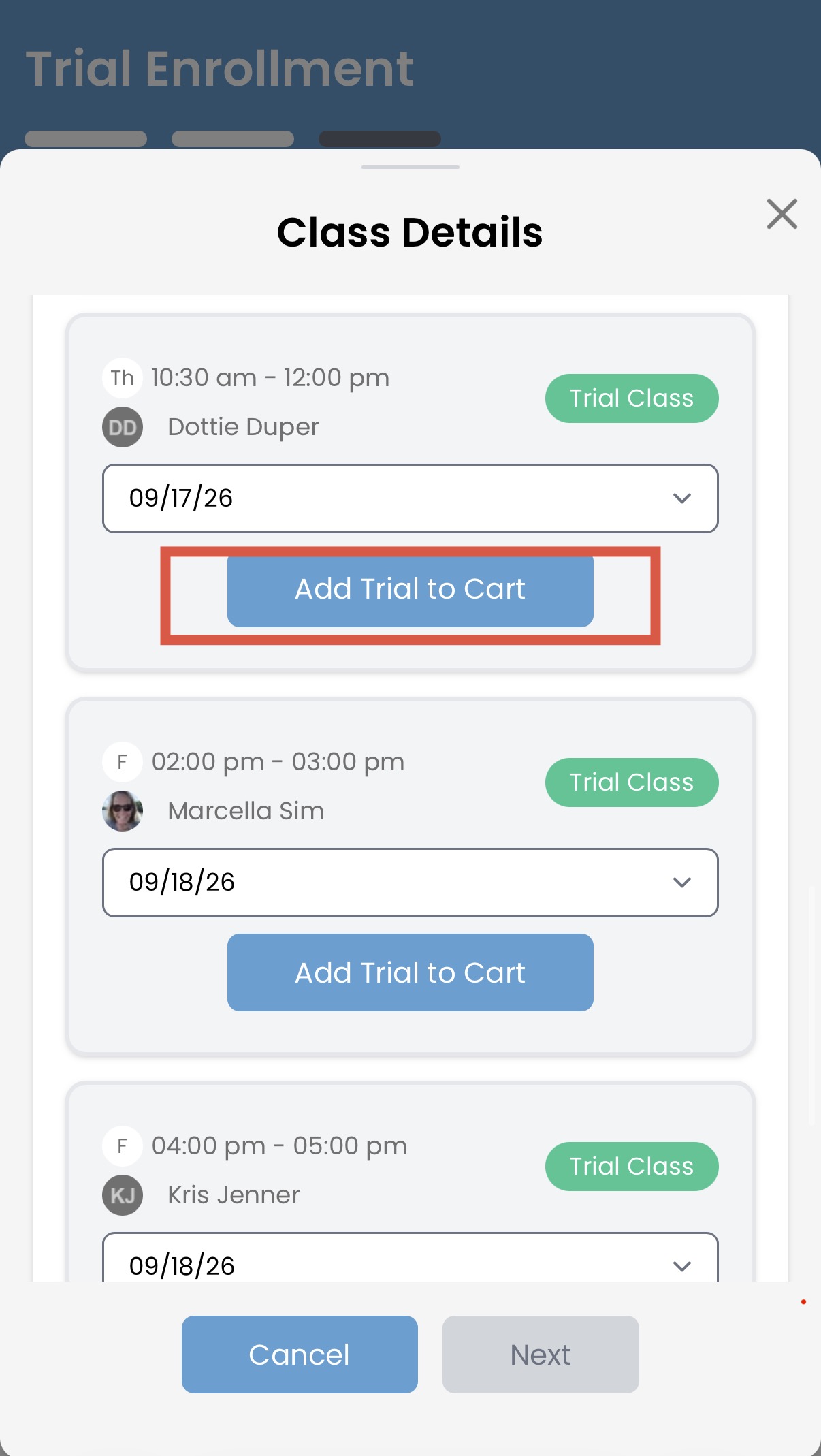
- The drop down within the trial class allows the parent to select a specific trial date. After the date is selected, Add Trial to Cart will put the request into the shopping cart and the enrollment process can be continued.
-
- Once you've added the trial to your cart, you will taken back to the list of classes. Click the blue Next button to check out!