Class Notes
Add notes to a specific class occurrence or a specific day of class using our class notes feature. These notes can be used as alerts for coaches of changes in the studio, warnings about class size or behavior, or reminders about the class. These notes are only viewable by coaches, teachers, and admin.
Add Class Notes
Begin by navigating to the class occurrence you want to add a note to. At the top of the page, you will click on the purple notebook icon to begin your class note or view all of the notes created for that class.
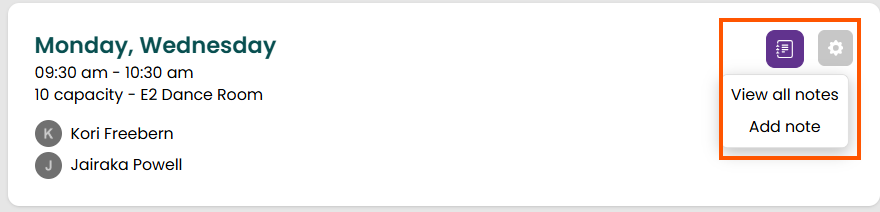
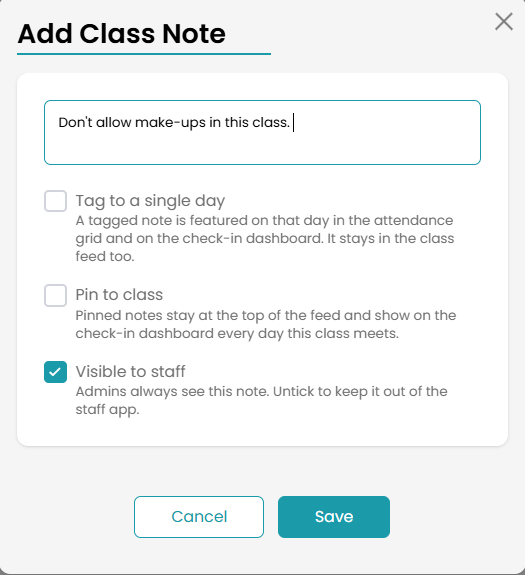
Once you select Add Note, a modal will pop up allowing you to create your note for this class. You will also be given three different checkboxes to check if needed:
- Tag to a single day-This will place a note on a single day of class for teachers to view. This will be visible on the attendance page on that day of class.
-
- Pin to class-This will pin the note to the class, so that staff and admin can see it immediately when viewing this class and on the attendance page.
-
- Visible to staff-This box will be checked automatically when you create the note. Admin will always have access to class notes, but unchecking the box will remove it from view on the staff app.
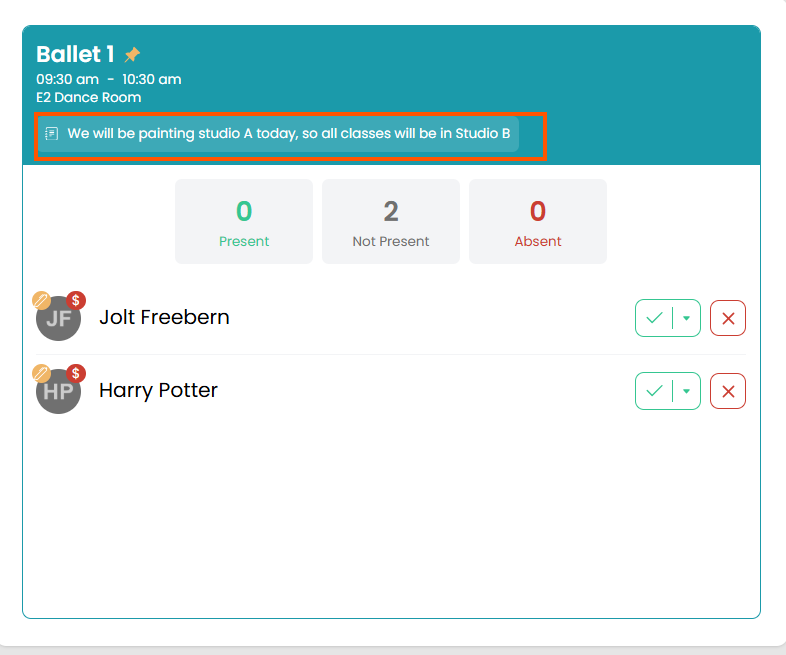
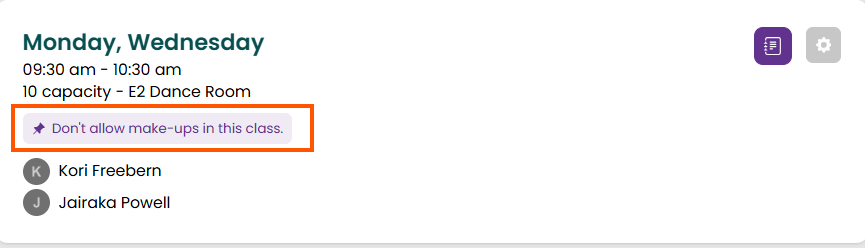
Once the note is saved, it will appear on the class page in both the admin and staff app. View all of the class notes by choosing View all notes option when clicking the purple notebook icon.
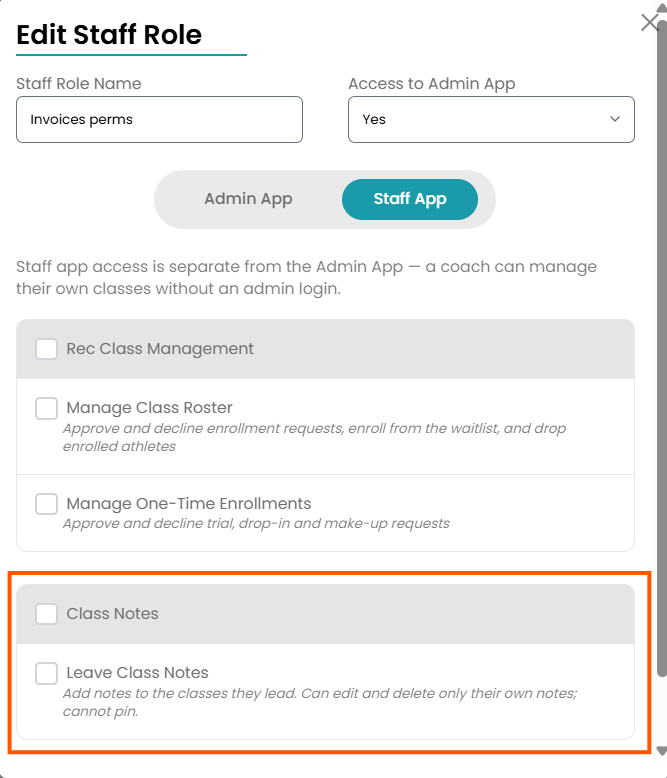
Allow Staff to Create Class Notes
If you want staff to be able to create a class notes from the staff app, make sure to select the Leave Class Notes option when editing their staff role. For more information on staff roles, visit this document.