
Staff Roles
Administrators can assign their staff additional permissions from either the Admin dashboard or the staff app using the Staff Roles feature. Once a new staff role is defined, any staff members can be assigned the role which allows them to access things such as Admin Reports, Billing information or a variety of other permissions.
The staff roles will be defined by navigating in the Admin portal, Settings>Staff> and viewing the Staff Roles on that page. The default staff roles are always there: Admin, Front Desk and Staff. Admin and Staff cannot be changed, but Front Desk can be modified to meet the goals of the business.
Defining a new Staff Role
Once you navigate to Settings > Staff > Staff Roles, follow these steps:
- Select the + button to open the Staff Role modal
- Define the staff role name
- It should be unique and descriptive, for instance "Session Reports Staff" could give permissions to view and print the role sheets for all classes.
- Set "Access to Full Out Admin" to Yes to allow staff certain permissions in the admin portal
- This setting allows the staff user to log in to the Admin portal, where they can access the features that are permitted. If you set this to No, you can still edit certain staff app permissions.
- Begin selecting which permissions you want to allow this role to have
- The permissions are mostly grouped into a higher level function, such as Billing, or Reports. The entire section can be selected, or individual permissions within a section.
- Click Save and begin assigning this role to users!
Just note that for a few permissions to function properly, there may be a related permission that needs to be enabled. These constraints are described in the tables below.
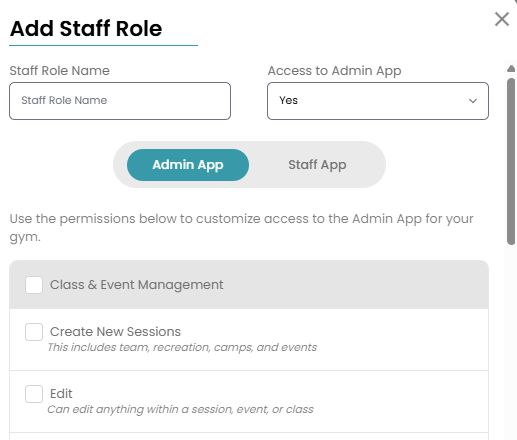
Admin App Permissions
The tables below describe each permissions category and the permissions available in each category.
| Category | Permission | Description |
|---|---|---|
| Class & Event Management | All permissions in the category are enabled | Checking this box will enable all the permissions listed under this category. See descriptions below. |
|
|
Create New Sessions -This includes team, recreation, camps, and events | This permission allows the user to create new team and recreation sessions and events, and camps. The user is also allowed to create teams and classes within a Team Session. Once created, however, there is no option to edit these teams or classes. The camp, once created, does have ability to edit the tuition page of the camp settings but no other parts of the camp. |
|
|
Edit - -Can edit anything within a session, event, or class |
This permission allows the user to edit existing sessions, events and classes. User cannot however enroll athletes into a class, team, event or camp period but can assign staff to these and has permission to assign teams to team events. |
|
|
Change Enrollment Status -Update enrollment status for athletes |
This permission allows the user to modify the enrollment status for athletes. This includes enrolling athletes into classes, camps, rec events, as well as changing the enrollment status between enrolled, transfer, dropping, pending request and waitlist. |
|
|
Enroll Past Capacity -Allow staff to exceed the class capacity when enrolling athletes |
This permission allows the user to enroll athletes into classes when it exceeds capacity. The Change Enrollment Status permission above must also be enabled for the pas capacity enrollment feature to work. |
|
|
Leave Class Notes | This permission allows the user to add, edit, and delete notes for any class occurrence, not just the ones they are assigned to as a leader. |
| Category | Permission | Description |
|---|---|---|
| Messaging | All permissions in the category are enabled | Checking this box will enable all the permissions listed under this category. See descriptions below. |
|
|
User in Family Direct Admin Chat -Can view and send messages |
This permission allows the user to access the Family - Admin category of chats where they can view and send messages. |
|
|
Team Chat -Can view all team messages |
This permission allows the user to access the Teams category of chats where they can view and send messages. |
|
|
Staff Direct -Can view all staff direct messages |
This permission allows the user to to access the Staff - Direct category of chats where they can create threads, view and send messages. |
|
|
Staff Groups -Can view all staff group messages they are not assigned to |
This permission allows the user to access the Staff - Group category of chats where they can create a new group, view and send messages in all groups. |
|
|
Delete Messages -Can delete messages |
This permission allows a user to delete messages within a chat. This is only applicable if the user has a permission to be in one of the chats as described above. User will be allowed to select the Delete for Chat or Delete for Everyone options on the messages within the chat they have access to. This permission by itself provides nothing additional to the user. |
|
|
Post Gym Wide Bulletin -Allow posting in the gym wide bulletin |
This permission allows the user to access the gym wide bulletins and the capability to post bulletins in this category. The user will be able to perform all functions of the bulletin including edit and republish. |
|
|
Post All-Staff Bulletin -Allow posting in the all-staff bulletin |
This permission allows the user to access the all-staff bulletins and the capability to post bulletins in this category. The user will be able to perform all functions of the bulletin including edit and republish. |
|
|
Recreation Class Bulletin -Post and view all recreation bulletins |
This permission allows the user to access the Class bulletins and the capability to post bulletins in this category. The user will be able to perform all functions of the bulletin including copy, edit and republish. |
|
|
Team Bulletin -Post and view all team bulletins |
This permission allows the user to access the Teams bulletins and the capability to post bulletins in this category. The user will be able to perform all functions of the bulletin including copy, edit and republish. |
|
|
Camp Bulletin -Post and view all camp bulletins |
This permission allows the user to access the Camps bulletins and the capability to post bulletins in this category. The user will be able to perform all functions of the bulletin including copy, edit and republish. |
|
|
-Post and view all marketing emails |
This permission allows the user to access the Email Campaigns found under Admin>Communication>Email. The user will be able to create new campaigns from the existing marketing segments. If the user needs to create new marketing segments, they will need permissions to Manage Platform Settings Access described in the category table Others below. |
| Category | Permission | Description |
|---|---|---|
| Billing | All permissions in the category are enabled | Checking this box will enable all the permissions listed under this category. See descriptions below. |
|
|
View Billing Dashboard & Subpages -Give permission to see billing pages. |
This permission allows the user to access Billing on the side nav and view all the billing pages, including the Billing Dashboard, All Invoices, Recurring Profiles, Invoice Queue and Payments pages. Each of these pages can be viewed but cannot be modified. All Invoices shows list of invoices only. Recurring Profiles lists the profile assigned to each family and if clicked goes to the family page. Invoice Queue page lists all the draft invoices, no actions are available and Payments page allows user to open payments for viewing only. |
|
|
Submit Billing Refunds -Must have access to the billing dashboard pages |
This permission checked by itself will not give any permissions to the user. The user must have access to the billing dashboard pages to access Payments page and issue refunds. Select View Billing Dashboard & Subpages checkbox and this checkbox to enable the user to process refunds on payments. |
|
|
View Billing Invoices -View from Family page |
This permission allows the user to view invoices. In addition to viewing the invoice, the user also has permissions to Print and Add Note to the invoice. Invoices can be viewed from the Family>Billing History page, Recreation Class>Tuition and Additional Fees pages, Camp>Camp Period>Tuition page, Events>Event Fee page, Team>Tuition and Additional Fees pages. If View Billing Dashboard & Subpages is checked, the invoices can also be opened from the billing dashboard pages. |
|
|
-Create invoices, edit line items and discounts. Requires access to view invoices |
This permission allows the creation of new invoices, editing of existing invoices and Send of the invoice if a draft state. This permission must have View Billing Invoices permission enabled. Invoices can be created on the Family>Billing History page. If the permission View Billing Dashboard & Subpages is enabled, the All Invoices page is also available to create, edit, change state of invoices. |
|
|
Pay Invoices -Run payments on an invoice |
This permission allows the user to Send draft invoices and make payments on invoices. The invoices can be opened from each of the pages described above in the View Billing Invoices description. |
|
|
Quick Sale Shopping Cart & Invoice Products -Use the Quick Sale shopping cart and add products to invoices |
This permission allows the user to access the Product shopping cart icon to invoice athletes for the purchase of the products enabled in the Settings>Billing>Products page. The user can create an invoice by selecting the icon, a family, choose the athlete and a product from the drop down list. The product purchase can also be added to an existing invoice, if there are any. This permission only allows products to be added to invoices. After the product is added, it cannot be deleted, the invoice cannot be modified. The user is also able to Print the invoice. |
|
|
-Create or edit credits |
This permission allows the user to create and edit family credits. With this permission only, the credits can be accessed on the Users>Family>Billing History page. The existing credits can be opened and modified, and new credits can be created. If the View Billing Dashboard is enabled, the user can also access the Billing>Payments page where new credits can be created and existing credits can be viewed and modified. |
|
|
Edit Scheduled Fees -Create or edit scheduled fees |
This permission allows the user to access the User>Family>Scheduled Fees page and add and remove manual fees and invoice level discounts. The user can also add and remove line item discounts to recurring line items. |
|
|
Manage Family Payment Settings -Edit family payment settings and delete credit cards |
This permission allows the user to access the Users>Family>Payment Settings page and modify all information on that page. The user will be able to add and delete credit cards to the family, and change the default credit card designation. The Payment Settings on this page can also be changed. |
|
|
Withdrawal Page Access -View details of payment processing withdrawals and account balance |
This permission allows access to the Withdrawal Page under Billing category. To view this page, View Billing Dashboard & Subpages checkbox must be selected. |
| Category | Permission | Description |
|---|---|---|
| Reports | All permissions in the category are enabled | Checking this box will enable all the permissions listed under this category. See descriptions below. |
|
|
View Billing Reports -Access to all billing reports |
This permission allows the user to generate and view all of the Billing Reports; this access also allows the user to save the report as a CSV or Print the report. |
|
|
View Session Reports -Access to all session reports |
This permission allows the user to generate and view all of the Session Reports; this access also allows the user to save the report as a CSV or Print the report. |
|
|
View Users Reports -Access to all users reports |
This permission allows the user to generate and view all of the Users Reports; this access also allows the user to save the report as a CSV or Print the report. |
| Category | Permission | Description |
|---|---|---|
| Others | All permissions in the category are enabled | Checking this box will enable all the permissions listed under this category. See descriptions below. |
|
|
Manage Platform Settings Access | This permission allows access to the Settings navigation and to manage all of the platform settings there. In addition, this permission will allow the user to create and issue documents. Currently this is the only permission applicable to documents. |
|
|
Manage Documents | This permission allows editing of documents in the platform. It also gives staff the ability to send documents to users. |
|
|
Manage User Profile | This permission, by itself, allows editing of the user details page of athlete and parent users. The parent or athlete can be modified in all areas except the user type (i.e., Athlete, Parent or Staff type cannot be modified); Coupled with the Manage Staff Profile permission described below, however, the user type can be modified for parent and athlete users. |
|
|
Manage Staff Profile | This permission allows access to the Employee tab of Staff user and modification of their staff profile. They can be set to Admin, Staff, Front Desk or any of the defined staff roles. This setting also allows a staff user details page to be modified, the user to be deleted or disabled. By itself, this permission does not allow parent or athlete users to be modified. |
|
|
Manage Time Card Tools | This permission allows access to the Time Tools side navigation, and Add a time card record, view, modify, and approve time cards. The time card data can also be printed or downloaded as CSV. |
NOTE: There are no individual permissions for parties, however the user will have access to create and edit parties. The billing access (invoices) will follow the general permissions for invoices in the staff roles selected.
Staff App Permissions
The tables below describe each permissions category and the permissions available in each category.
| Category | Permission | Description |
|---|---|---|
| Rec Class Management | All permissions in the category are enabled |
Checking this box will enable all the permissions listed under this category. See descriptions below. *Note-In order for these permissions to function properly, certain settings need to be enabled at the class level. Visit this document to learn more. |
|
|
Manage Class Roster | This permission allows staff to manage enrollment requests, enroll athletes from the waitlist, and drop athletes from their roster. |
|
|
Manage One-Time Enrollments | This permission gives staff the ability to approve or decline trials, drop-ins, and make-ups for their classes. |
| Class Notes | All permissions in the category are enabled | Checking this box will enable all the permissions listed under this category. See descriptions below. |
|
|
Leave Class Notes | This permission allows staff to add notes to any classes they lead. They can only delete or edit their own notes and cannot pin any to the class. |
| Kiosk | All permissions in the category are enabled | Checking this box will enable all the permissions listed under this category. See descriptions below. |
|
|
-Allow staff to use kiosk mode on staff app |
This permission allows a staff user to select the Kiosk Mode from the Staff App home page. The Kiosk Mode brings up a page that allows parents to enter their phone number to check-in their athletes. |