Party Page Overview
To view the party details of a booked party, admin can navigate to Enrollments > Party Manager and click on a party either from the top calendar or the list at the bottom.
Once the party is selected, you will have access to all of the information you need through four different tabs.
Booking Details
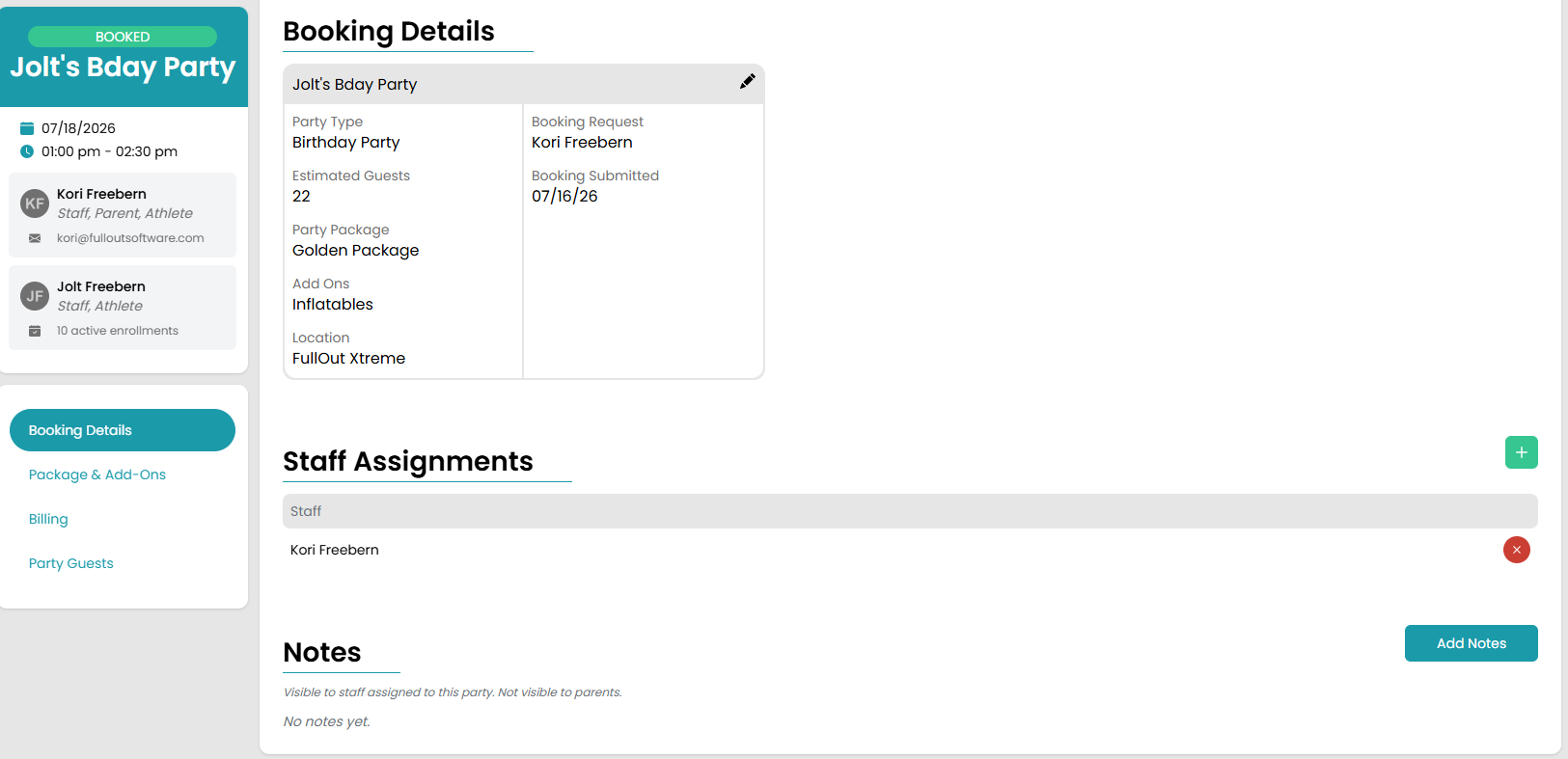
This page will default to the Booking Details tab. The top of the page details the overall party information including guest count, party type, and any other pertinent details.
Under Staff Assignments, you can assign staff members to the party by clicking the green plus button and typing in the name of the staff you want to add. Additionally, the Notes section allows you to add notes specifically for the staff. These notes will not be visible to parents but can contain anything you want the staff assigned to the party to see.
Package & Add Ons
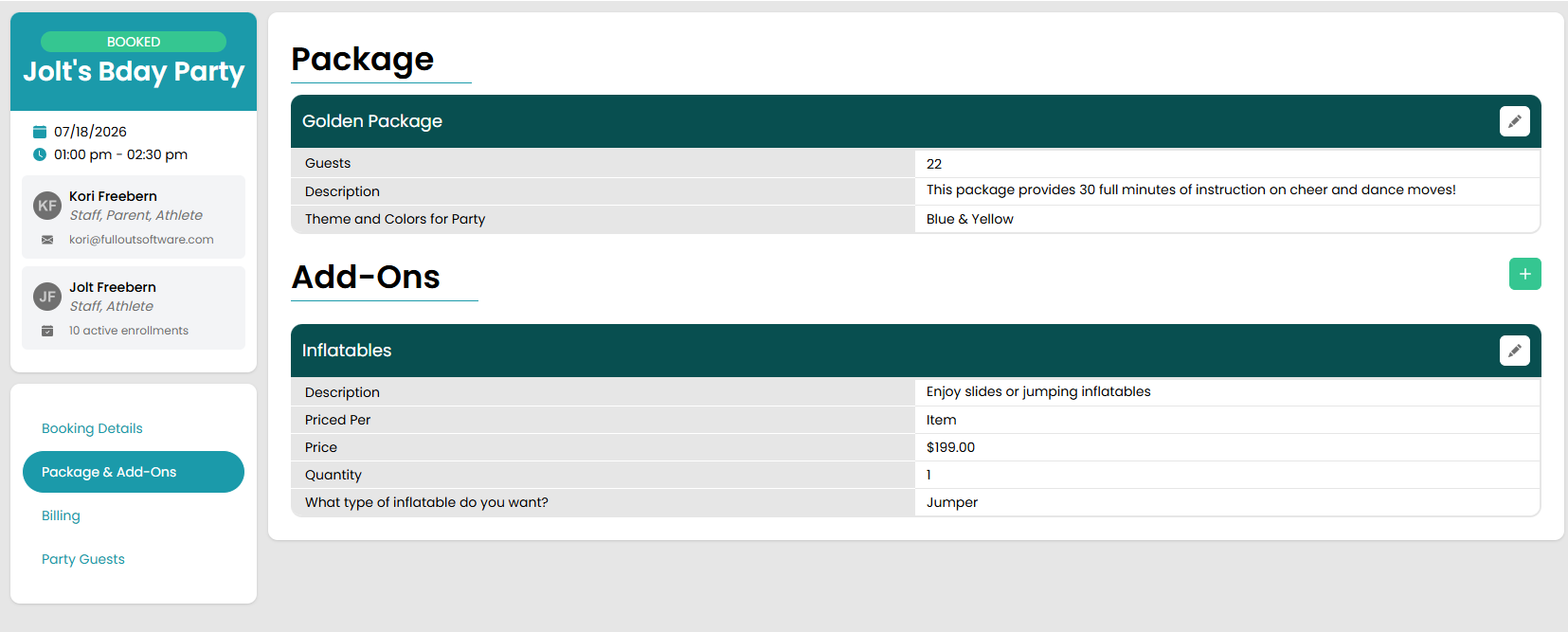
This tab details the package chosen by the parent as well as any add ons the parent chose for the party booking.
Billing
The Billing tab will show you the final invoice preview and provide the invoice information for the deposit. This is also where you will go to create the final invoice before, during, or after the party depending on your gym's policy for party payments. The final invoice is not automaticly generated.
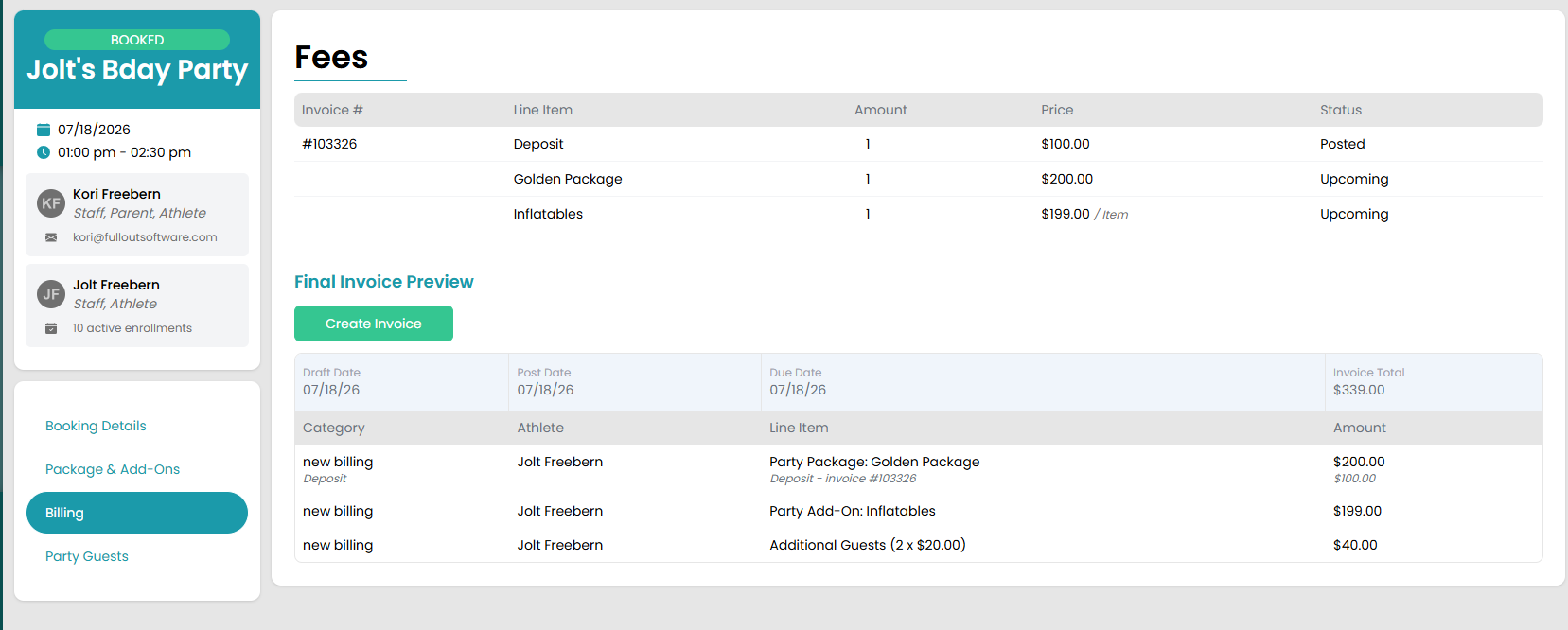
Once the final invoice has been created, you will be able to view it by clicking on the invoice number.
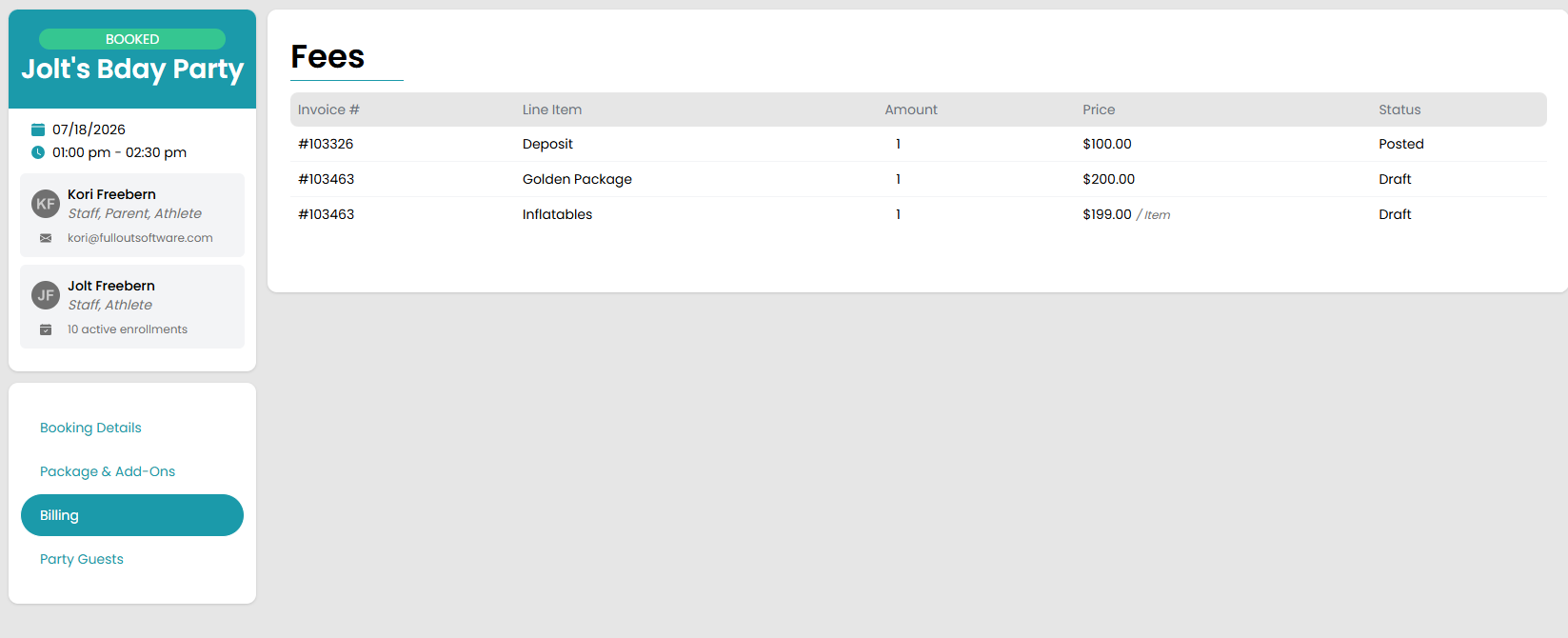
Once the final invoice is generated, you will be unable to make changes to the party. If you need to make changes to the party after the final invoice is generated, you can archive the invoice and update any of the settings.
Party Guests
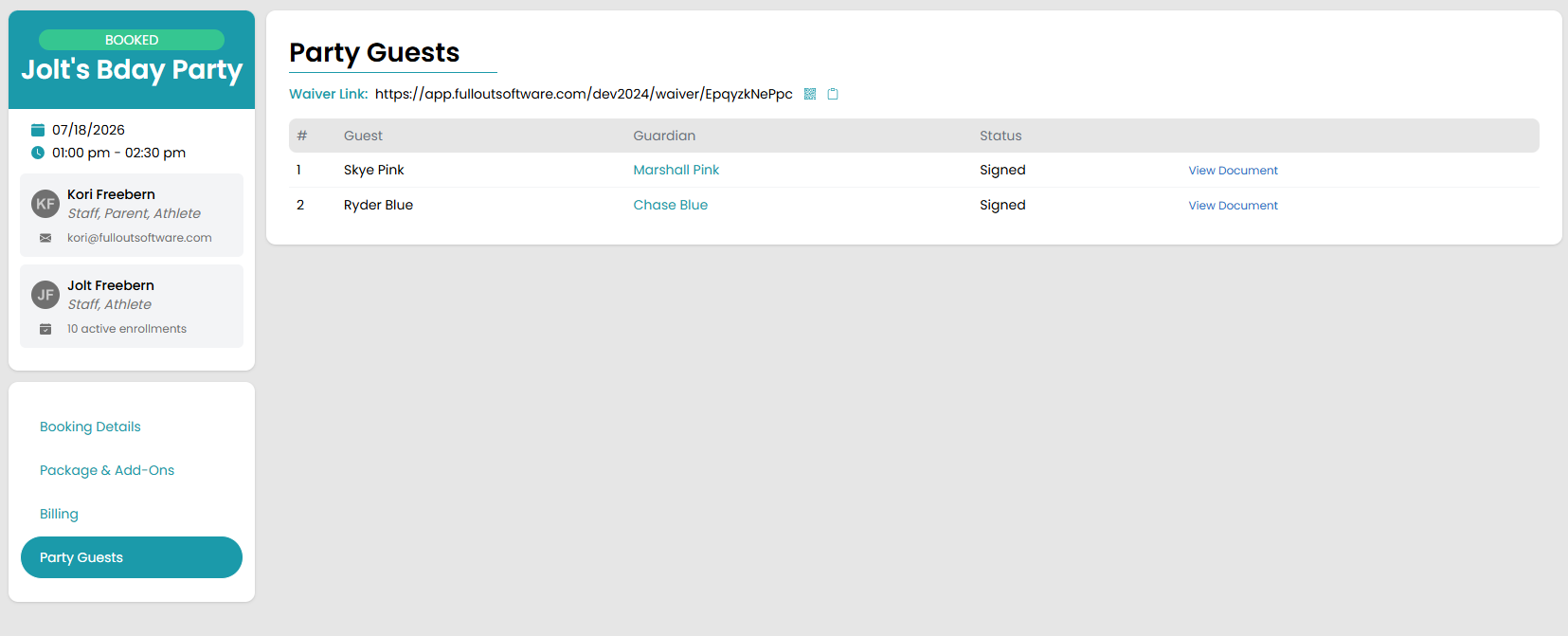
The final tab will provide the link/QR code to the party waiver as well as show you the list of guests who have signed the waiver for this party. Click here to learn more about setting up a party guest waiver.