
Discounts
There are different types of discounts on the Full Out platform that can be configured with either a flat rate or percentage:
- Invoice Level Discounts: Will be applied as it's own line item on the invoice and applied to every line item on the invoice
- Line Item Discounts: Will be a discount for a specific line item, reducing that one line item's total cost
You also have the option to enable Automated Discounts for your gym. Learn more about setting up Automated Discounts here.
Creating a Discount Category
- Navigate to Settings > Discounts
- Under Discount Categories, select the green + button to add a new discount
| Setting | Description | Options & Examples |
|---|---|---|
| Name | This is the category that the discount will be stored as |
Example:
|
| Apply to | Here you will set if this discount type should be applied to an entire invoice or a line item |
Invoice Line Item |
| Description | This will display on the invoice as the line item description |
Example:
|
| Type | Setting the type of discount that will be applied |
Flat Amount ($) Percentage (%) |
| Amount |
Based off the type, you can set a default amount for the discounts. You can overwrite this when adding to an invoice or recurring profile |
|
Applying a Discount to an Invoice
This will apply the discount to the specific invoice the discount is added to. If you'd like the discount to be recurring and apply to all upcoming invoices:
- Navigate to the Invoice that you want to add a discount
- Hit the edit pencil in the bottom right hand corner
- Decide which type of invoice you will be adding. If you are missing a discount category, please refer back to the first section of this document to set that up.
-
Invoice Level Discount: You will select the button "Add Line Item" and click discount from the dropdown menu.
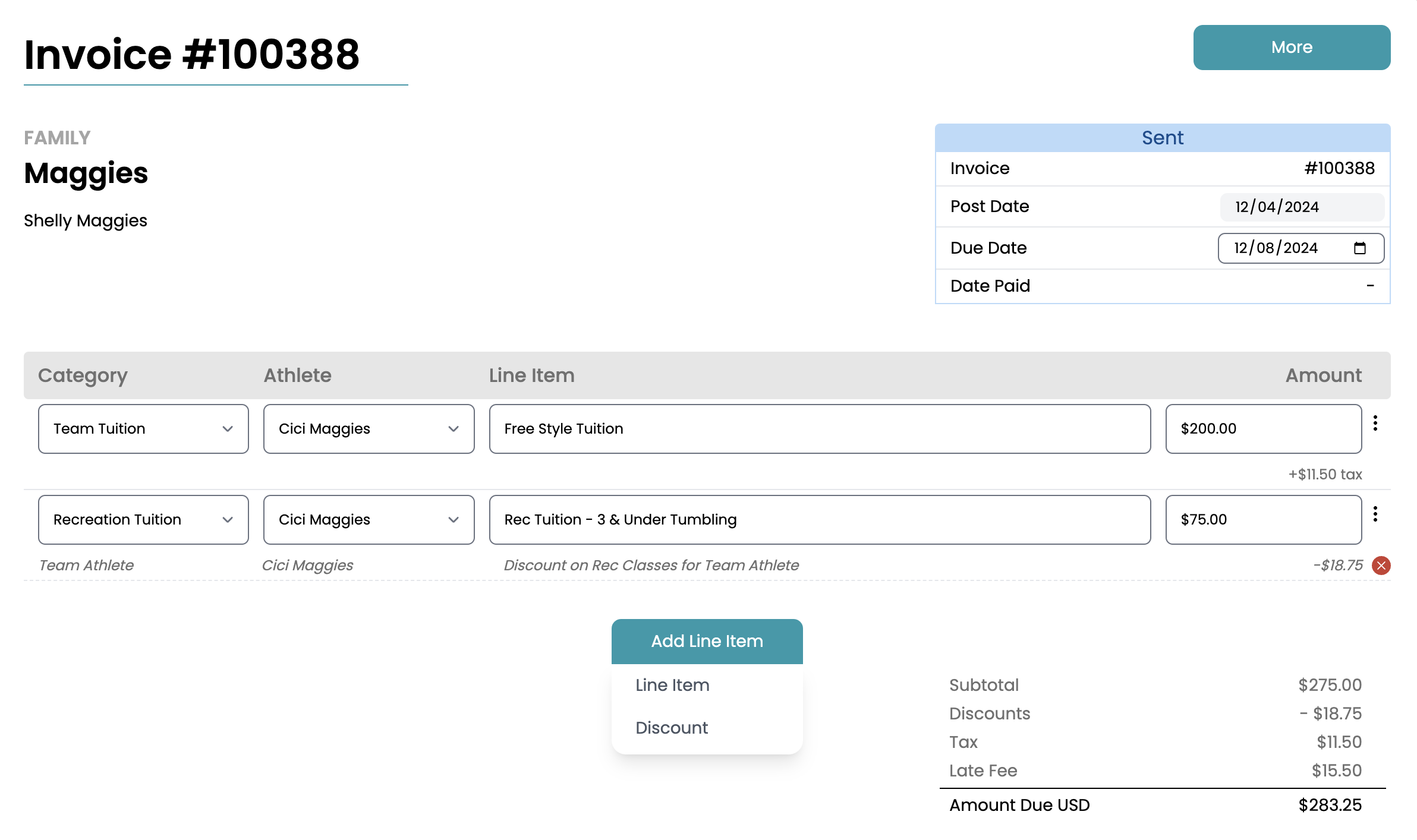
-
Line Item Discount: On the line item that you want to add the discount, click the ellipsis button (three dots) and select add discount.
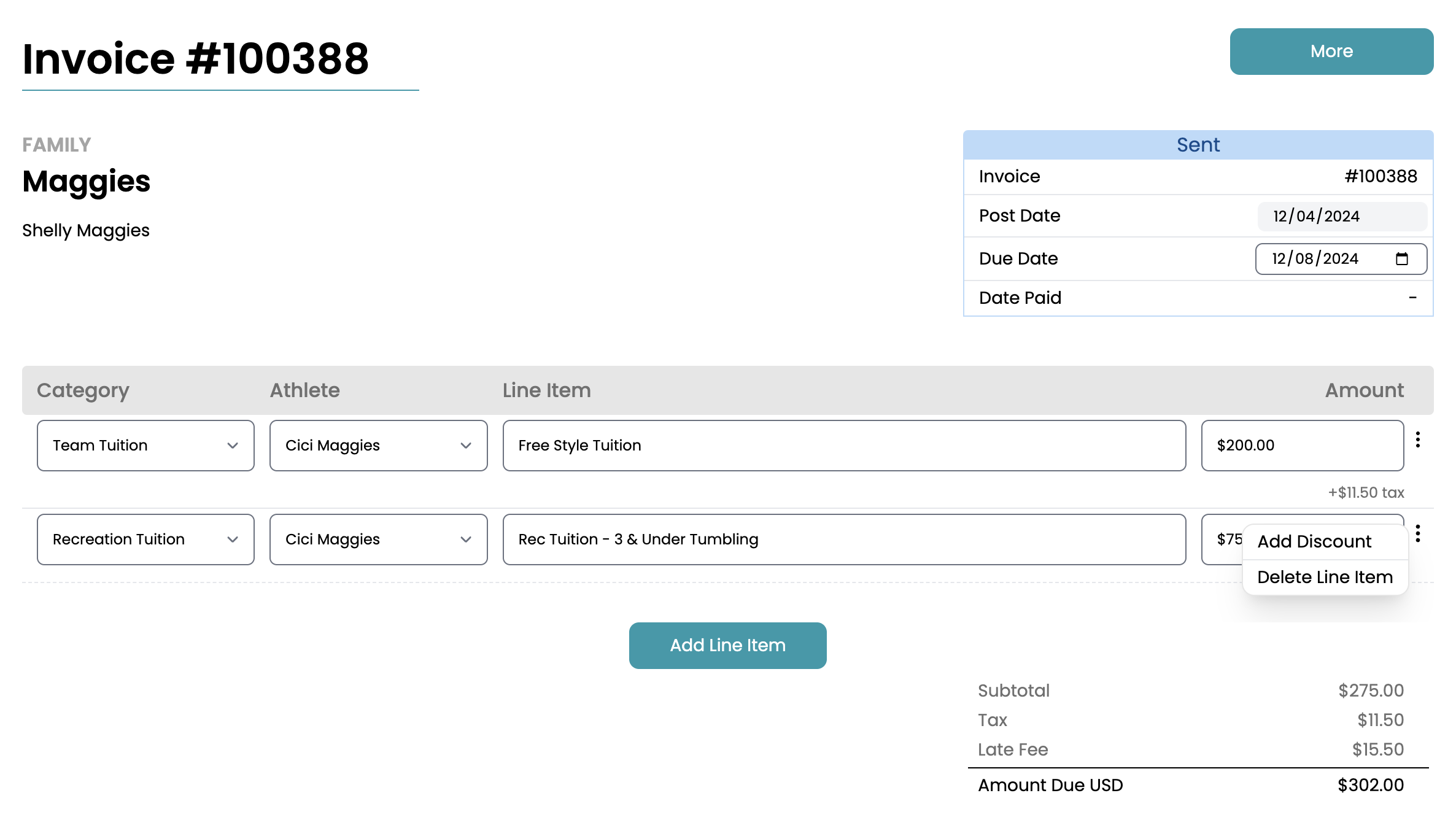
-
- Click save in the bottom left hand corner.
Applying a Discount to a Recurring Profile
- Navigate to the Family Profile that you want to add a discount
- Go to the Scheduled Fees Tab
- You can add a discount to all items on the recurring or select the specific line item you want discounted.
- Line Item
- Click the 3 dots next to the line item
- Add discount
- Fill out the pop up window
- Entire profile
- Click the "Green Plus" in the upper right corner
- Discount
- Fill out the pop up window
- Line Item
NOTE: Once a discount category is in use, you will not longer be able to make any adjustments to the Apply To or Type categories. You will also no longer be able to delete the discount category after it has been used, but you can toggle it from Active to Inactive on the Settings > Discounts page. Making a discount category inactive WILL NOT delete it from any drafted or sent invoices.