
Documents-By Enrollment
If you need to assign waivers to specific enrollment types, that do not apply to everyone else at your gym, you now have the option to create waivers tied to specific teams, rec classes, events, camps, and party bookings. Here are the steps to do so:
- Create a new doc as you normally do by going to Admin Tools > Documents >Blue Plus Button
- Once you've created your new document, you now have the option to choose, By Enrollment under Document Type in the document settings
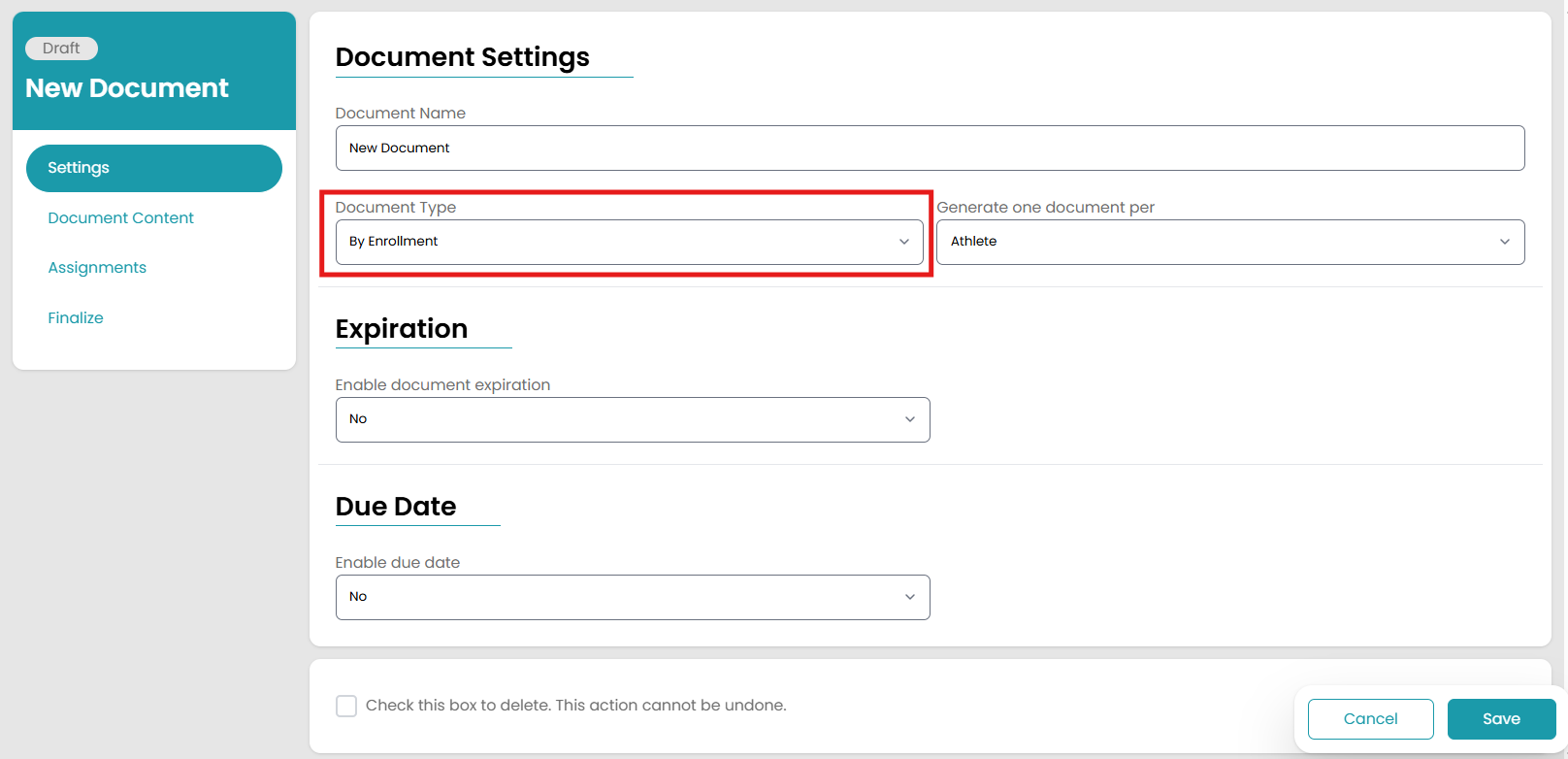
- Edit the rest of the settings to your specifications. Then navigate to the Assignments tab where there will be a new section called Enrollment Assignments.
- You will have several options to toggle on or off on this page: Recreation Session, Team Session, Camp Session, Rec Events, Team Events, Party Manager
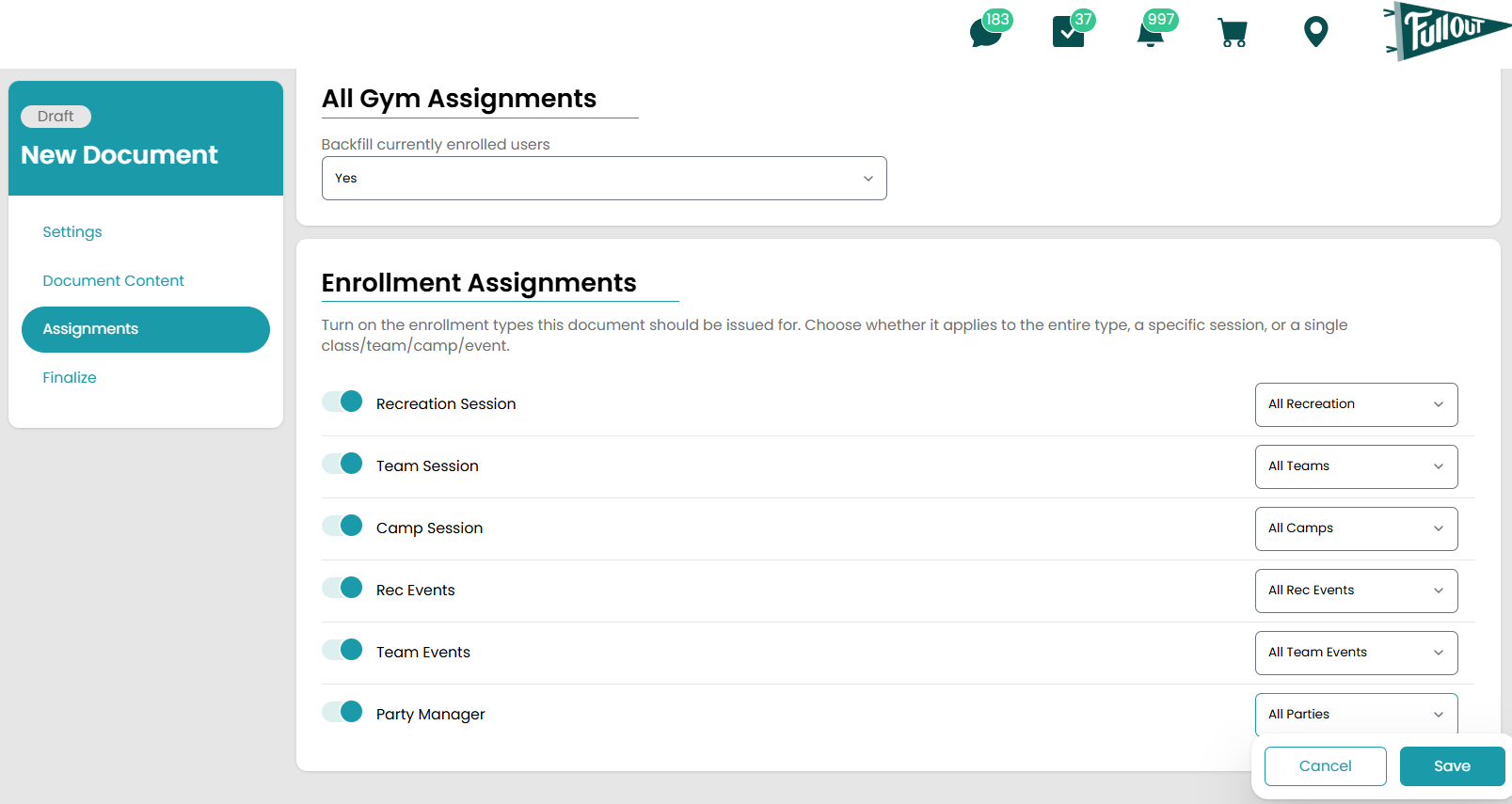
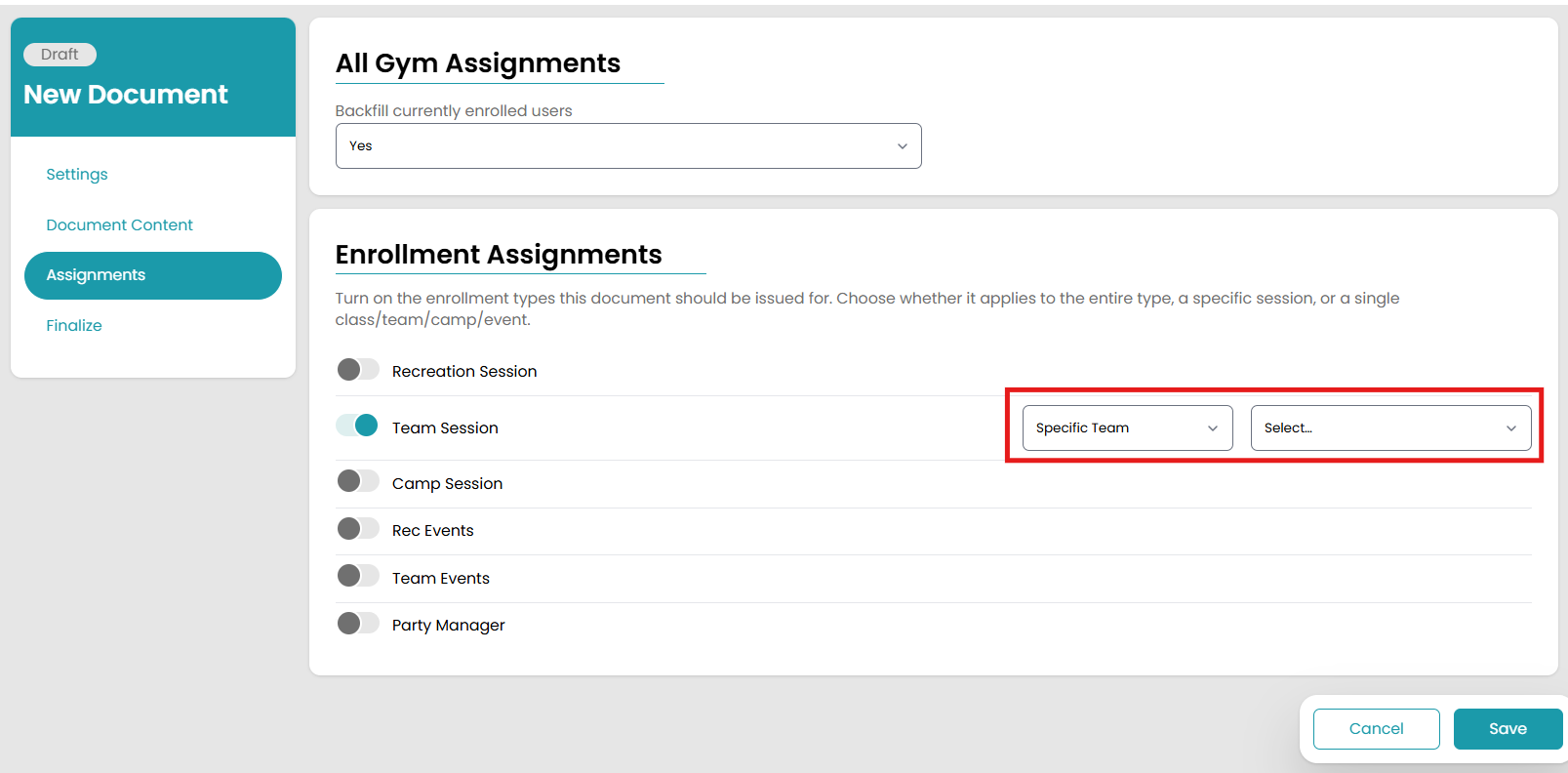
- Once you’ve toggled one of those options on, a drop down menu will pop up on the right where you can choose whether you want this to apply to All Teams/Camps/Recreation etc.., Specific Sessions, or Specific Teams/Classes/Camp Periods etc..
- If you choose Specific Sessions or Specific Teams/Classes/Camp Periods etc.., a second dropdown menu will appear where you can find the session and/or team/class you want the document to apply to
NOTE: Choosing "Specific Sessions" will allow you to assign the document to ALL classes in the session you choose. Selecting "Specific Classes/Teams" will allow you to choose multiple teams from any current session to assign this one document to.
- Add your Document Content and post your document!
This feature also works for Party Manager if you have a payment agreement form or other release waivers specifically for the person booking the party. This differs from our Party Waiver feature which is intended for waivers for all guests such as safety waivers necessary to use the equipment.