Copy Rec Session
How to Copy a Rec Session
Copying a rec session allows you to quickly duplicate an existing session, including its structure and key details, saving time when setting up new schedules.
Steps to Copy a Rec Session
- Open the rec session you would like to copy.
- Click the settings (gear) icon in the upper-right corner.
- Select Copy Session from the dropdown menu.
Configure the New Session
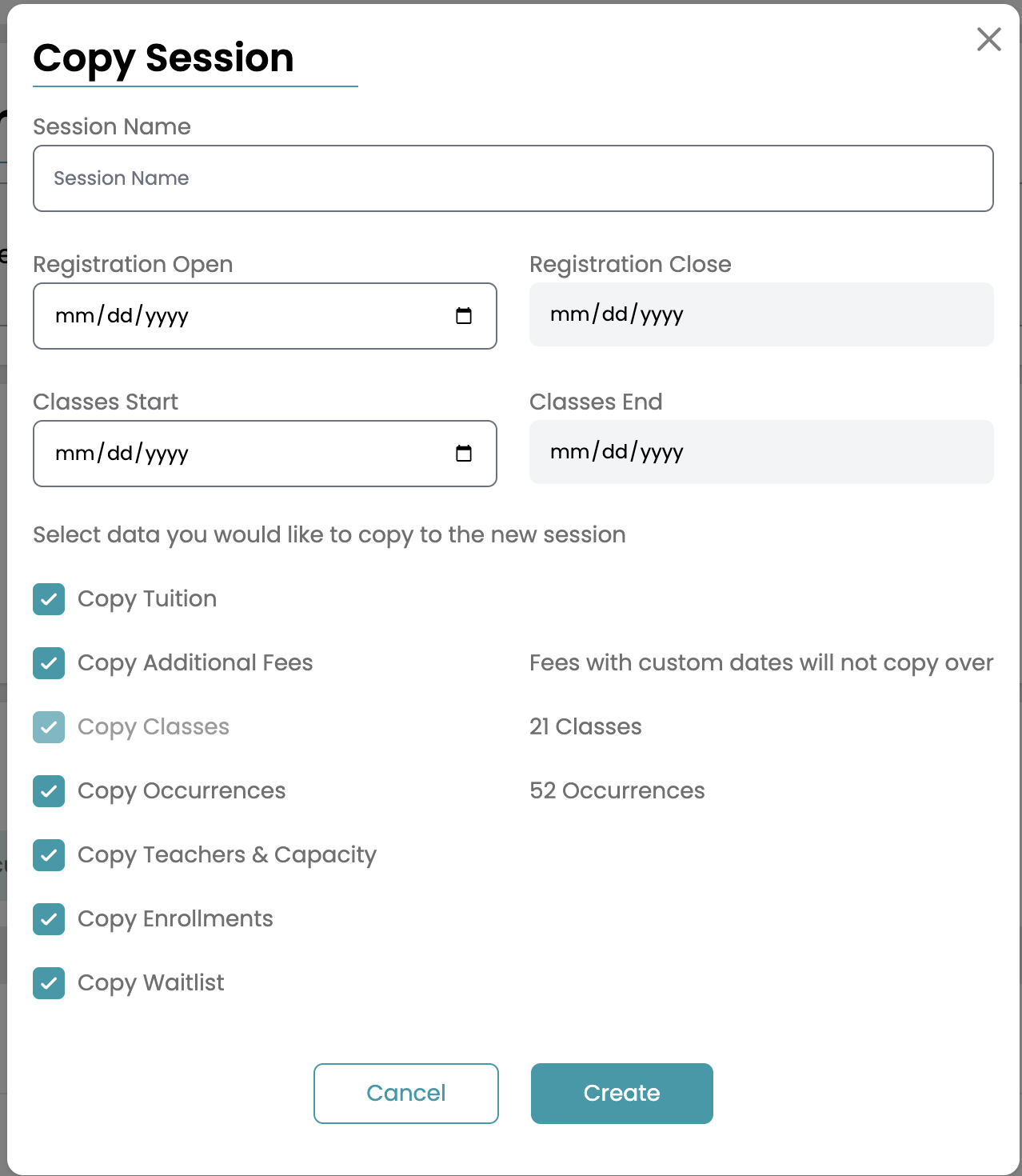
- In the pop-up window:
- Enter the new session name
- Set the start and end dates for the new session
Choose What to Copy
- Select the elements you’d like to include in the new session:
- Tuition
- Additional Fees
- Class names
- Occurrences
- If you choose to copy occurrences, you will also have the option to include:
- Teachers & capacity
- Enrollments
- Waitlist
- Once your selections are complete, confirm to create the new session.
NOTE: If you copy over tuition or additional fees that are checked to "Bill Upon Enrollment", those fees will be invoiced immediately once athletes are added and the session is created. Fees with custom dates will NOT copy over.
Notes
- Copying occurrences helps replicate the full schedule structure.
- Including enrollments and waitlists is helpful when rolling over active sessions, but may not be appropriate for brand-new sessions.
- All eligible make-up classes will be automatically copied over into the new session